FCM Requirements
To send push notifications to Android devices, AppAmbit uses Firebase Cloud Messaging (FCM).
Before configuring FCM inside AppAmbit, you must prepare your Firebase project and generate the necessary credentials.
This guide walks you through the full setup process.
Step 1: Sign in to Firebase
To begin, you need a Google account. Firebase is fully integrated into the Google ecosystem, so a Google account is enough to access all Firebase features.
- Visit the Firebase console:
Firebase Console - Sign in with your Google account.
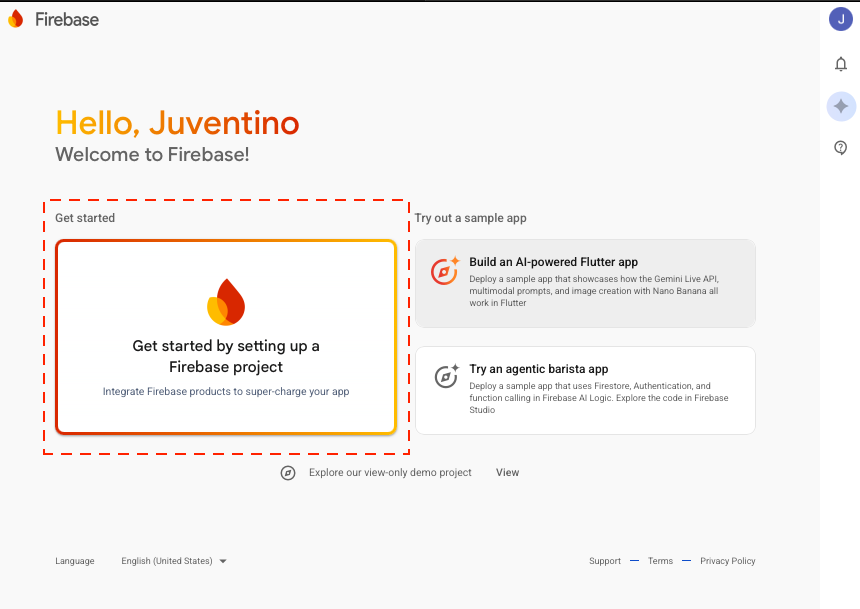
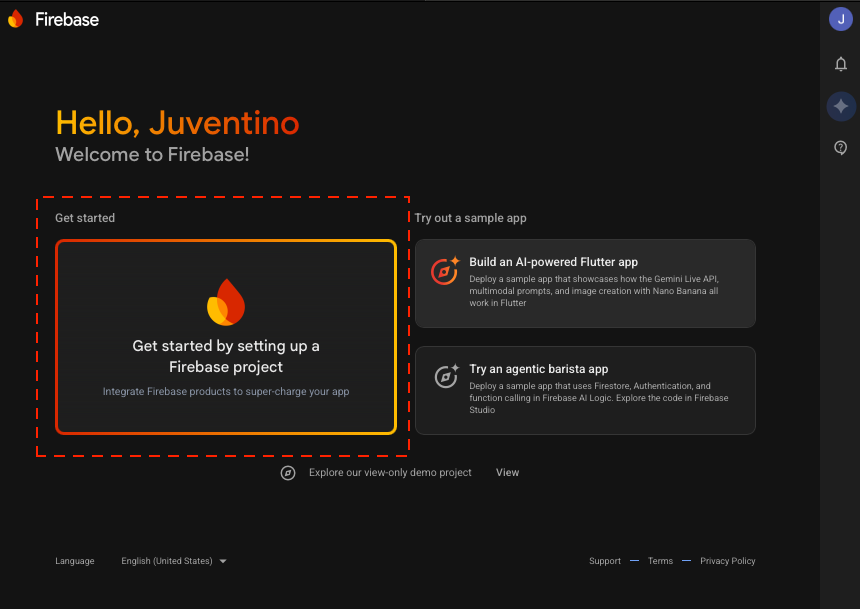
Step 2: Create a New Firebase Project
After signing in:
- Click Add project or Create a project.
- Enter the project name.
- Enable Google Analytics.
- Click Create Project and wait for Firebase to finish provisioning.
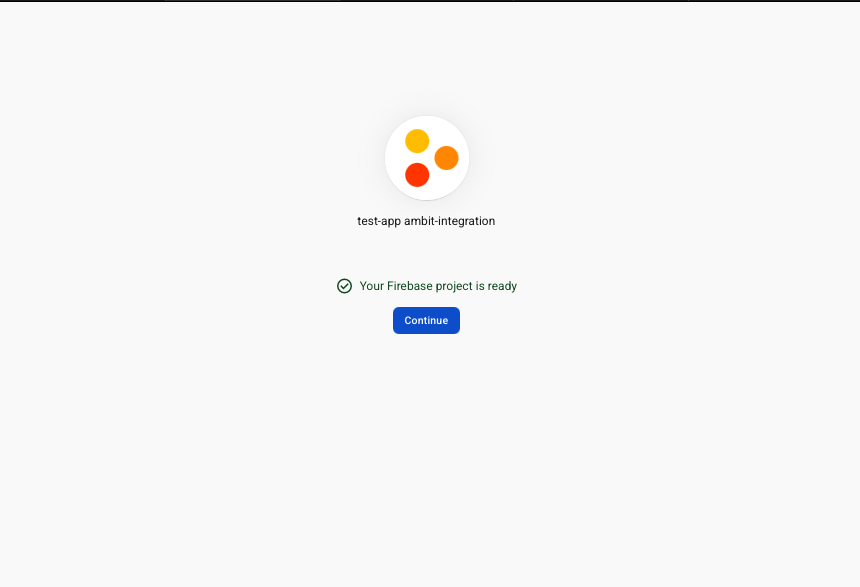
Once the project is ready, click Continue to open the project dashboard.
Step 3: Add an Android App to Your Project
Now you need to register your Android application with Firebase.
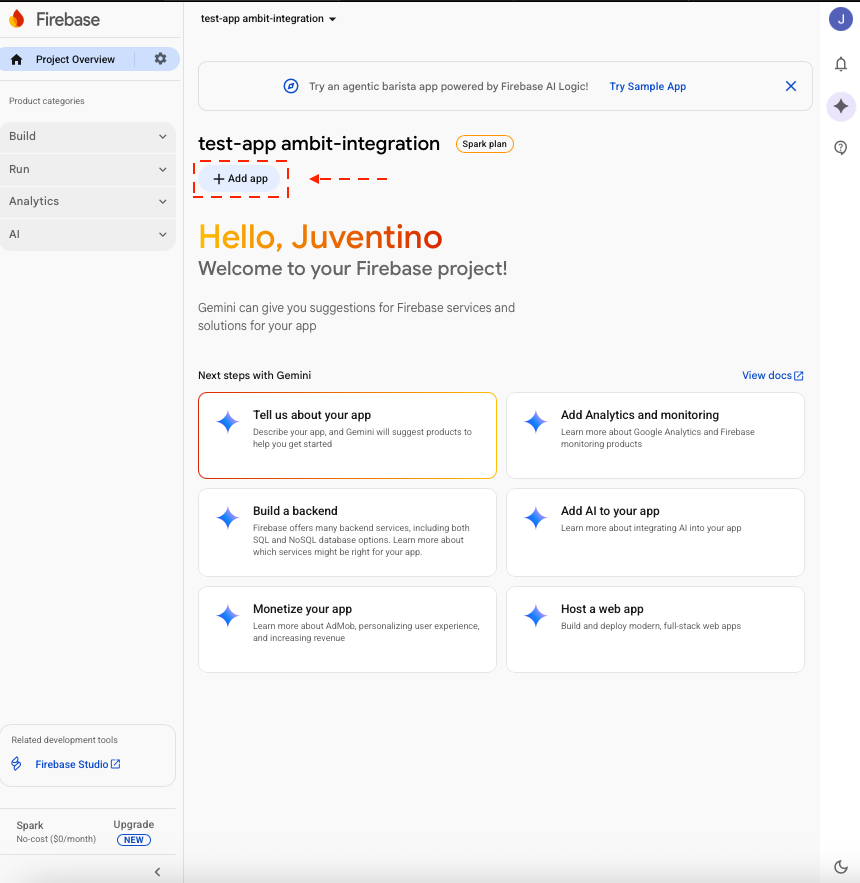
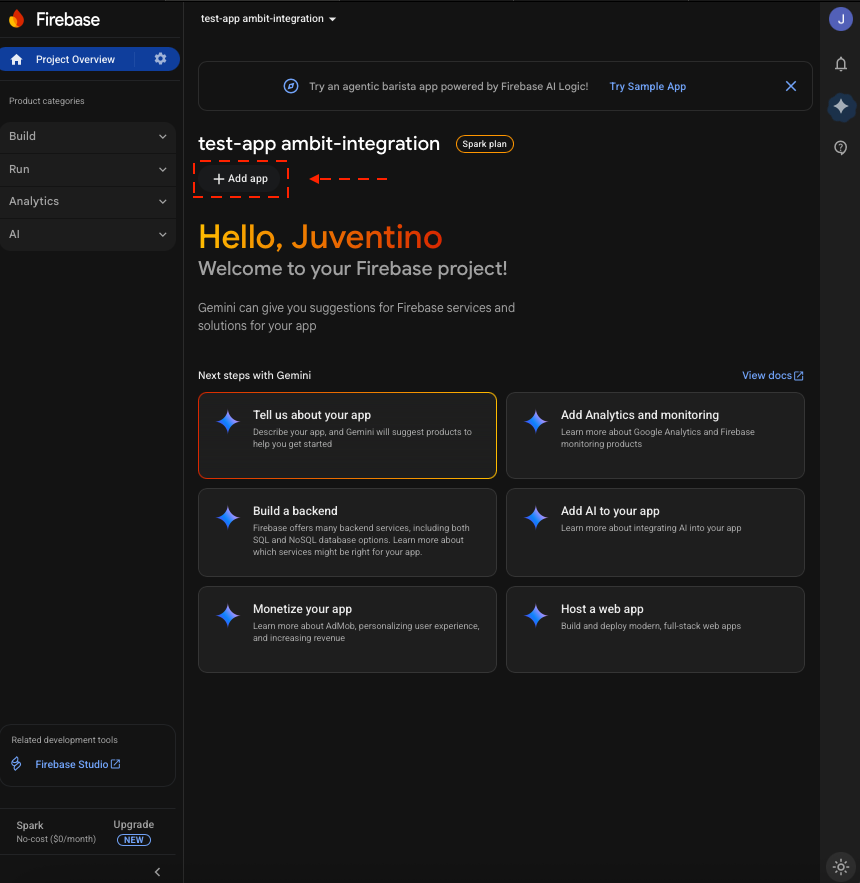
- In the project dashboard, click the + Add app icon and select Android.
- Fill in the required fields:
- Android package name
- Optional fields: app nickname
- Click Register app.
You do not need to download or integrate the google-services.json file for AppAmbit.
This is only required inside your mobile application—not for the AppAmbit dashboard.
Once finished, return to the Firebase console.
Step 4: Access Project Settings
To obtain the FCM credentials required by AppAmbit:
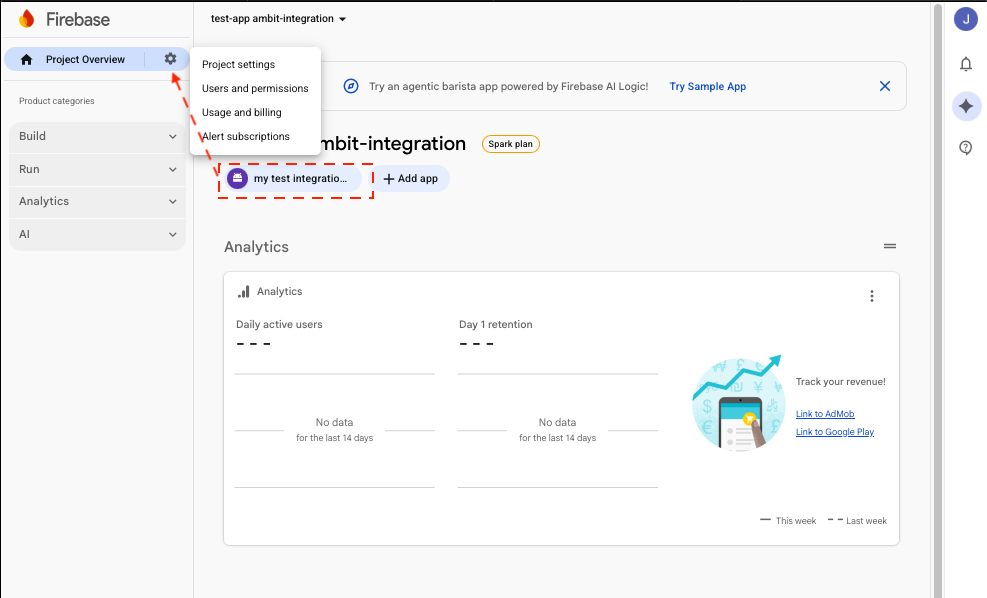
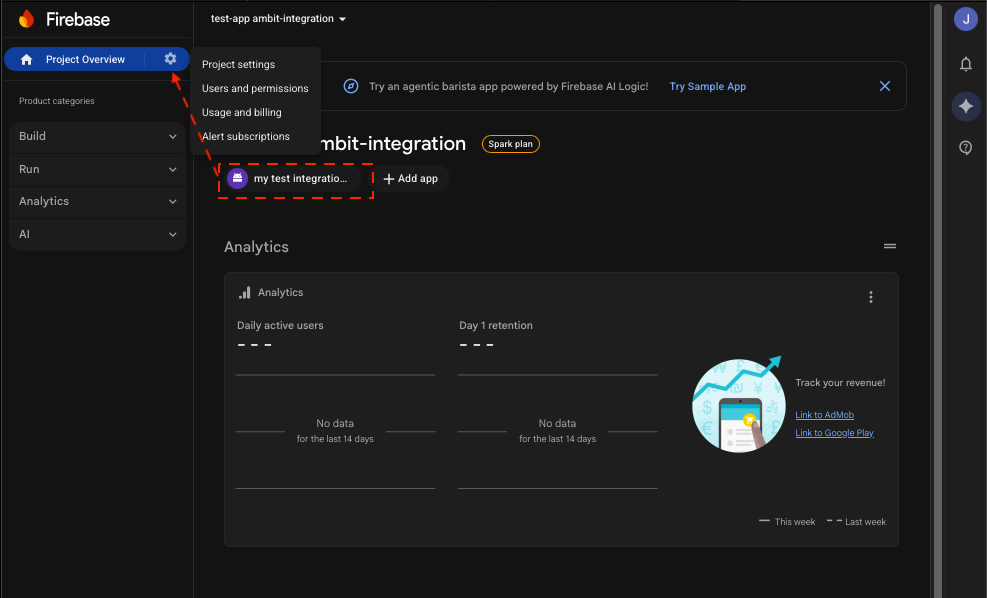
- Go to Project Overview in the left sidebar.
- Click the gear icon and select Project settings.
Step 5: Open the Service Accounts Tab
Inside the project settings:
- Select the Service Accounts tab.
- You will see a section for generating credentials used by server-side integrations.
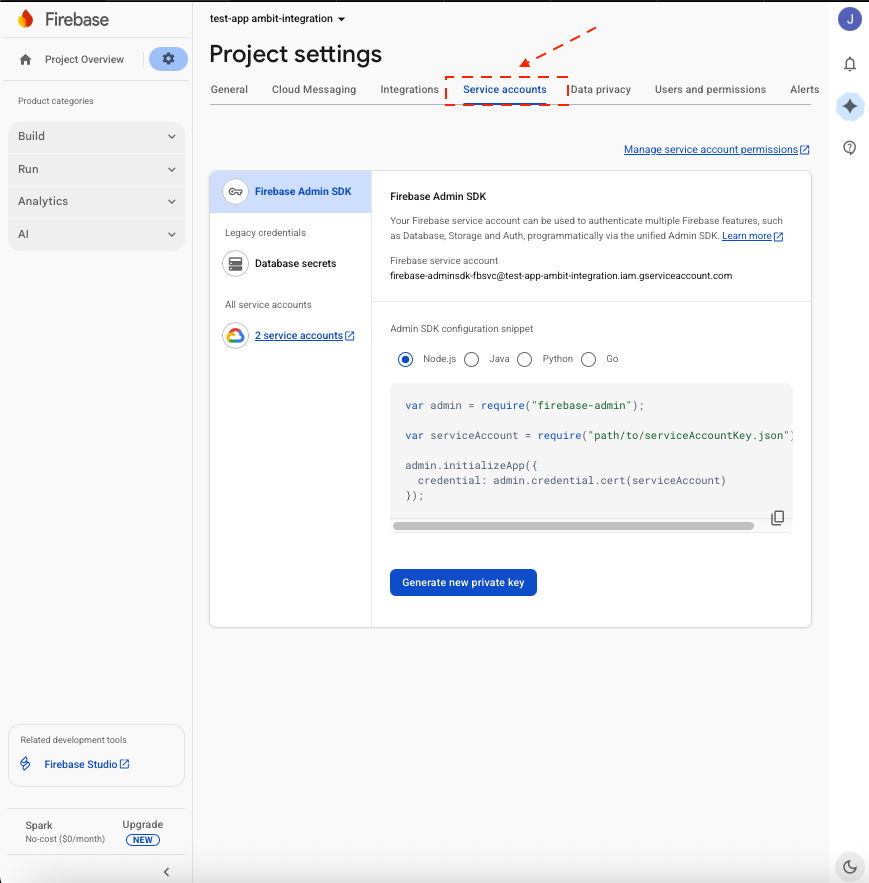
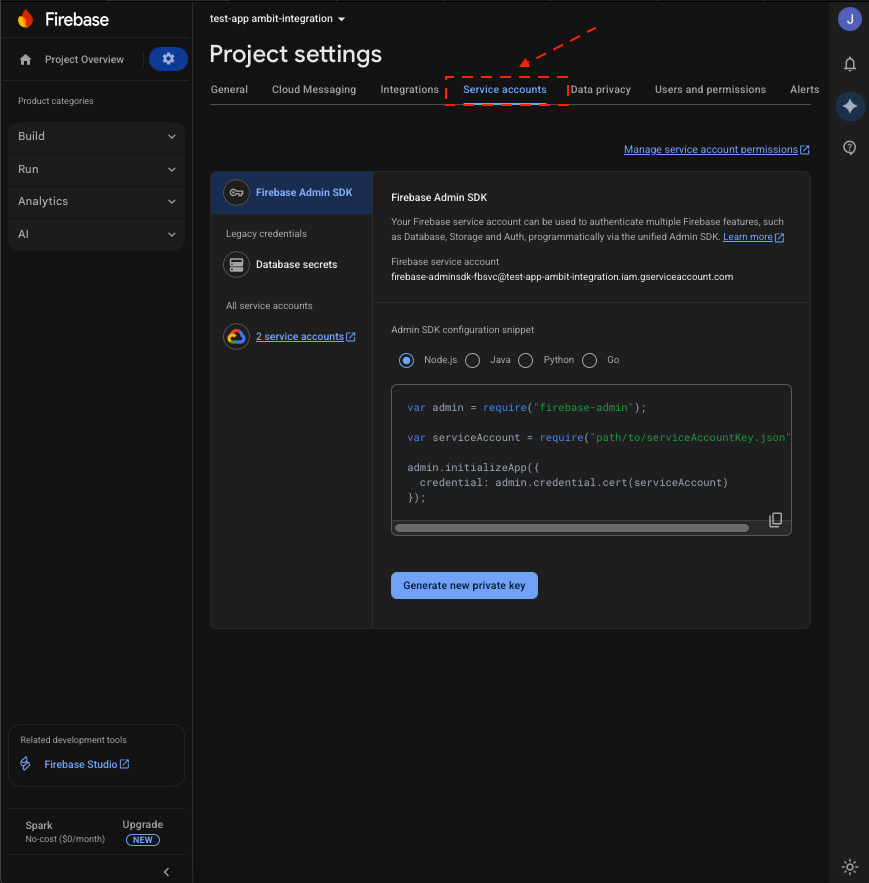
Step 6: Generate the Private Key (JSON)
In the Service Accounts tab:
- Click the button Generate new private key.
- Confirm the prompt Generate key to download the credentials file.
- A
.jsonfile will be downloaded automatically.

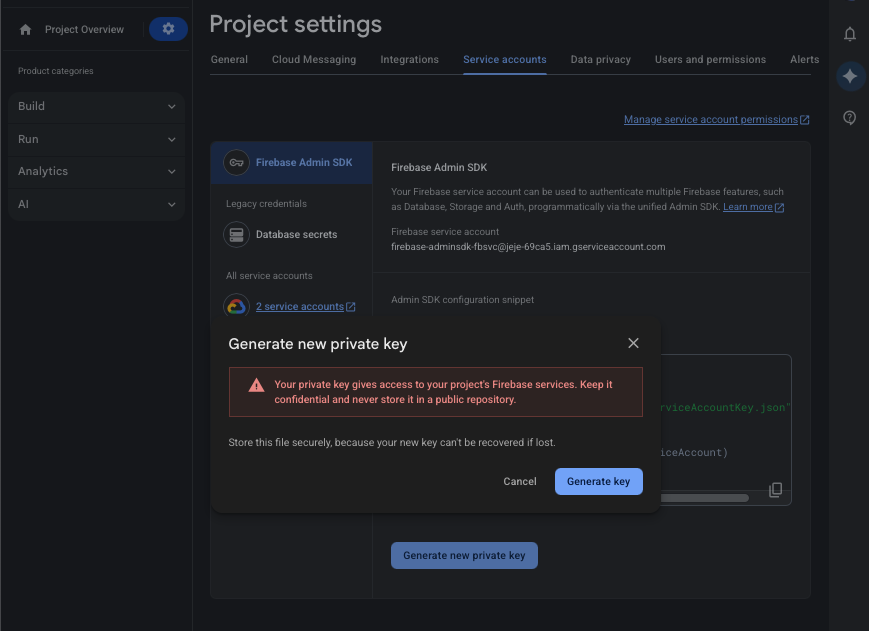
This .json file contains the permissions AppAmbit needs to interact with FCM and send push notifications to your Android users.
Next Step: Configure the Key in AppAmbit
Once you have your .json key:
👉 Continue to:
Set up credentials in AppAmbit
to upload your key and complete the final step of the integration.
Summary
You have now created a Firebase project, added your Android app, and generated the required FCM private key.
This key enables AppAmbit to authenticate securely with Firebase and deliver push notifications on your behalf.
Continue to the setup guide to finish connecting AppAmbit with your Firebase project.